
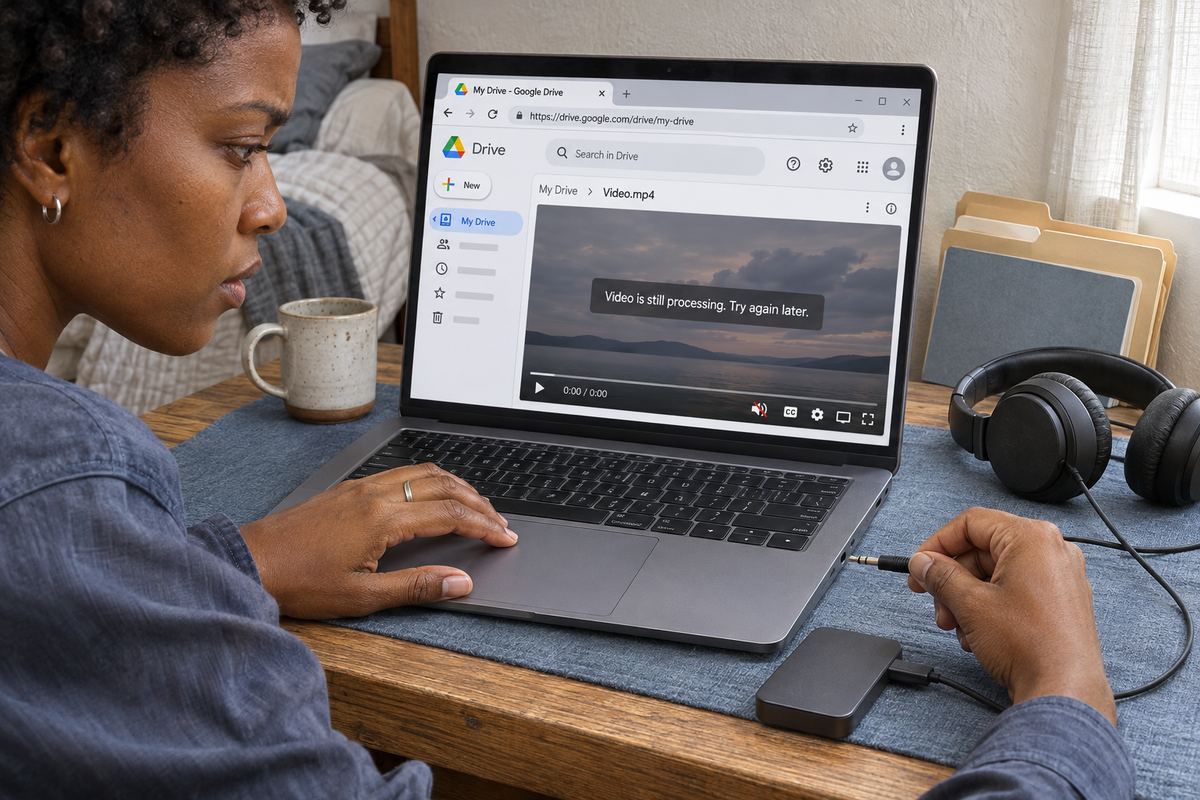
The video opens in Google Drive, the picture moves, the counter runs, and there is no sound. Often someone else tells you first: they opened your link and got a silent clip that you remember having audio.
The quick answer: something between the player and your speakers is muted, or Drive's player isn't handling the file's audio format, or the file has no usable sound in it. Google's page on playing video in Drive doesn't cover missing sound, volume or muting, so most of what follows is a set of tests to run in order rather than documented rules. The one firm reference is Google's own list of supported formats and codecs, quoted in cause 2.
Run this test first: download the file and play it locally
This splits the problem in two, so do it before you change anything. Go to drive.google.com, right-click the file and choose 'Download', then play the downloaded copy in a video player on your computer. If it is someone else's file and you don't see 'Download', ask the owner to run the test. If the download refuses to start, check your cookie settings: Google's download help says 'Blocking third-party cookies in Chrome will prevent you from downloading through Google Drive.'
- Sound plays locally: the audio is in the file. The problem is in your browser or in Drive's player. Work through causes 1 to 3.
- Silent locally: try a second player before you trust that result, because a player can lack support for an audio format too. If it is silent in both, go to cause 4.
- Then ask someone else to open the same link, or try it on your phone. If it has sound there, the problem is limited to your device, so look at cause 1. If it is silent for everyone in Drive but fine after downloading, go straight to cause 2.
Cause 1: Something is muted: the player, your device or the browser tab
Rule out the obvious first, because it takes under a minute. Google's help doesn't describe the player's volume control, though it places the Fullscreen control at the bottom of the player, and the bar along the bottom is where to look for a speaker icon.
A muted site gives no error either. The video just plays silently, and it is easy to do by accident when you are trying to silence a different tab. A helper in Google's Chrome community forum describes the control as right-clicking the tab and choosing 'Mute site', and another user there notes that it affects every tab from that site. Google's Chrome help articles don't cover this menu, so if your version looks different, go by the sound settings below. Chrome's help does document the sound permission, which it describes as: 'Sites might play sound to provide audio for music, videos, and other media.'
- Move your pointer over the video, click the speaker icon if it shows as muted, and raise the volume.
- Play sound from another website in the same browser. If that is silent too, the problem is your browser or computer, not Drive.
- Check your computer's output device. Sound may be going to Bluetooth headphones in another room or to a monitor with no speakers.
- On Windows, open the volume mixer and check the browser's own level, which can sit at zero while the main volume is up.
- On a phone, press volume up while the video is actually playing, so that you change the media volume and not the ringer.
- Right-click the Drive tab. If the menu says 'Unmute site', click it and reload the page.
- To check Drive specifically, click the icon to the left of the web address, choose 'Site settings' and look at the 'Sound' permission.
- To check Chrome's default, open More, then 'Settings', then 'Privacy and security', then 'Site settings'. Under 'Content', choose 'Additional content settings', then 'Sound'.
- Try an incognito window or another browser, and turn off your extensions. Google suggests these steps for video upload trouble, not for missing sound, but they are a quick way to test whether an extension or setting is responsible.
Cause 2: The audio format isn't on Google's list
If the downloaded file has sound and the video is silent for everyone in Drive, look here next. Google names an audio codec for most of the formats in its list, so the audio matters as well as the file extension. Google's 'Store & play video in Google Drive' page lists:
- 'WebM files (Vp8 video codec; Vorbis Audio codec)'
- 'MPEG4, 3GPP, and MOV files (h264 and MPEG4 video codecs; AAC audio codec)'
- 'AVI (MJPEG video codec; PCM audio)'
- 'MPEGPS (MPEG2 video codec; MP2 audio)'
- 'WMV'
- 'FLV (Adobe - FLV1 video codec, MP3 audio)'
- 'MTS'
- 'OGG'
What to do if your audio doesn't match the list
Two files can both end in .mp4 or .mov and carry completely different audio. Camera footage, screen recordings and exported films can use formats such as AC-3, E-AC-3 or DTS, which Google's list doesn't name, or PCM inside a MOV, where the list only pairs PCM with AVI. Google doesn't say what happens to audio it can't handle, so a mismatch isn't proof of the cause. It is a good reason to run the test below.
Google does say 'Not all video types may work on all devices', and 'Different video formats are supported by Google Drive, if yours is unusual, you need to convert it.' It also caps playback at 1920 x 1080 whatever you upload, which is a hint that what you see in the player may not be the stored file played back exactly as it is.
- Find your audio format. A player that shows codec details will tell you. In VLC on Windows or Linux, play the file and choose 'Tools', then 'Codec Information'.
- In your editor or converter, export a copy as an MP4 with H.264 video and AAC audio, which matches Google's list.
- If the audio is already AAC but has more than two channels, try a stereo export as well. Google's list says nothing about channel counts, so this is a test, not a rule.
- Upload the copy, wait until it is ready and listen. If it has sound, you have found the cause.
- To replace the file and try to keep the same link, click it, then open More, then 'File information', then 'Manage versions', and click 'Upload new version'. Google's page doesn't say the link and sharing settings stay the same, so test the old link in a private window afterwards.
Cause 3: The file is still processing, or won't play properly
If you see 'Video is still processing. Try again later.', Google's explanation is that a large file may take a while before the video is ready. It also says that a video you can already watch might still be processing. Google doesn't say audio can arrive after the picture, so treat this as something to test: if you uploaded recently, wait a while and reload the page before you convert anything.
'Video is unplayable.' is a different problem. Google says the file may be corrupted or in an unsupported format, and suggests uploading it again or using a different format. Both messages have their own guides on this blog. If your video has a moving picture and only the sound is missing, you are probably past them, so keep going with the other causes.
Cause 4: The file has no sound, or it is on another track
If the file is silent in two local players, Drive isn't the problem, and nothing in Drive will put the sound back. The audio has to come from an earlier copy of the file.
- Screen recording: check whether microphone or system audio capture was switched on in the recorder. If it was off, no audio was captured.
- Edited video: check that the audio track wasn't muted in the project and that audio was included in the export settings, then export again.
- Copied or converted file: go back to the original on the camera, phone or memory card and play that. If it has sound, upload the original or convert it again.
- Several audio tracks: some recorders put the microphone and system sound on separate tracks, and a player may only play one of them. VLC's 'Codec Information' window lists the file's streams. If you see more than one audio stream, try exporting a copy with them mixed into one track. This is another one to test, since Google doesn't document how Drive handles multiple tracks.
Prevent it next time
Most of this comes down to checking the file before someone else finds the problem for you.
- Export anything you plan to share in Drive as an MP4 with H.264 video and AAC audio.
- Play the finished file with sound on before you upload it.
- After the upload, give it time to finish, then open your share link in a private window and listen to a few seconds.
- If the recording can't be replaced, tell people to download it and play it locally, and make sure downloading is allowed for viewers.
If they just need the original file
If the person only needs your original file, and sound plays fine on your computer, you can also send it with OneSol Send, which takes files up to 5 GB by link and doesn't ask the recipient to sign in. You need a free OneSol account to send, and files are kept for 3 days, so it suits a handover rather than long-term storage.