
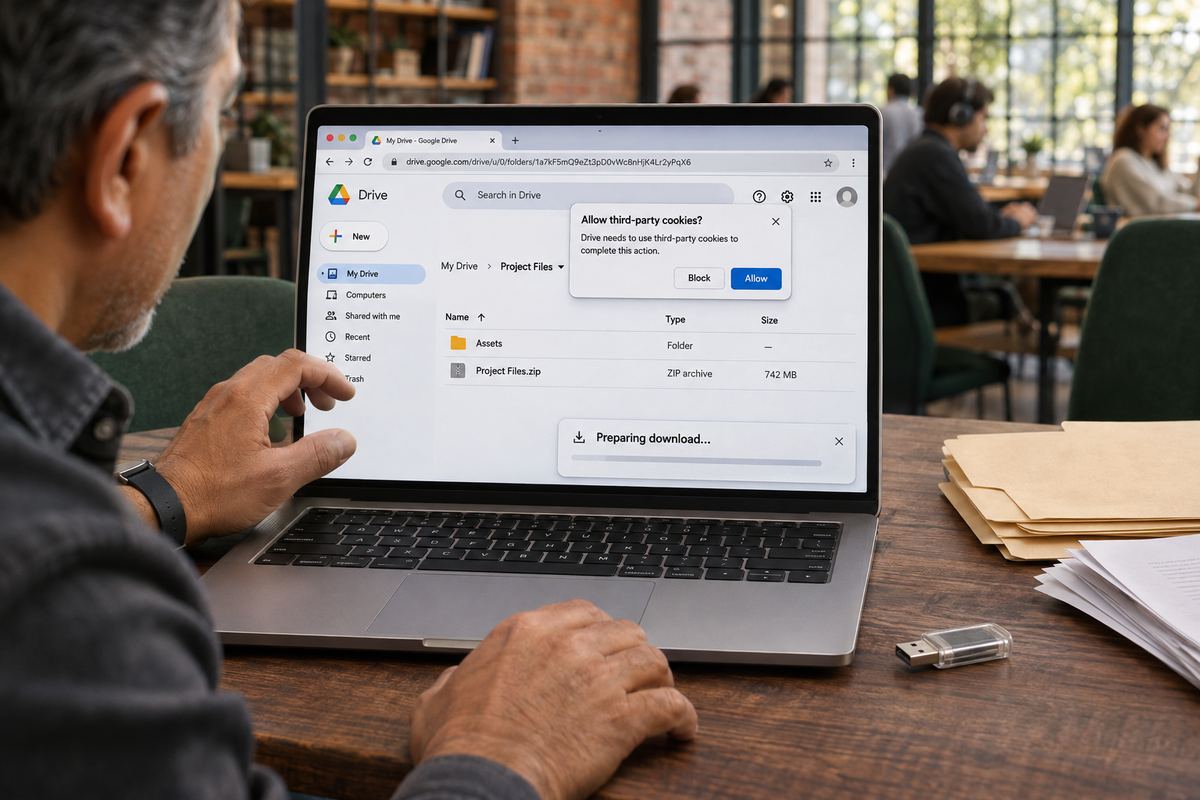
You select a folder in Google Drive and click 'Download'. A small panel says 'Preparing download', then 'Zipping', and stays there. Or it finishes and you get a zip that won't open, or one with half the files missing, or a second zip you never expected.
The quick answer: when you download a folder or several files at once, Drive compresses them into zip files first. So the problem is usually one of three things: the job is large and split into parts, your browser is blocking part of the process, or a part arrived incomplete. Google's Drive help has no entry for 'Preparing download' or 'Zipping' and gives no time estimate, so be wary of any exact wait time or folder limit you see quoted elsewhere.
Find out which problem you have
Before you change any settings, run one small test: in the same browser window, download a small folder or two small files together. To select several files, hold Ctrl on Windows or Command on a Mac, click each file, then right-click and choose 'Download'.
- The small test also hangs or fails: the browser is the likely cause. Go to Cause 2, then Cause 3.
- The small test works, but the big folder doesn't: the size of the job is the likely cause. Go to Cause 1, or skip to Drive for desktop.
- A zip arrives but files are missing, or it won't open: go to Cause 4.
- The message says 'Too many users have viewed or downloaded this file recently': that is a temporary limit on a popular file rather than a zip problem. Google says it typically resets within 24 hours.
Cause 1: The folder is large and being split into several zips
Multi-part downloads are a designed feature. When Google introduced them in 2016, its announcement said 'You can now compress and download Drive items into multiple 2GB zip files'. The first file was named like drive-download-20160516T125832Z.zip, and later ones like drive-download-20160516T125832Z-2.zip. That announcement is the only place we found Google stating a size. The current Drive help page gives none, so use the number as background, not as a guaranteed limit today.
A split job means more than one file has to be saved. If you only saw the first file, you may not have a broken download at all. Google doesn't publish a maximum folder size or file count for this kind of download, but smaller jobs are easier to retry when something fails.
- Leave the Drive tab open while the panel is working. Google's help doesn't say the job survives closing the tab, so don't count on it.
- Check the free space on your computer. Chrome reports 'Disk full' when there isn't enough room, and you will need space for the zips and the extracted files.
- Open the folder in Drive, select a few subfolders or a group of files, and download those first. Then repeat with the next group.
Cause 2: Third-party cookies or an extension are blocking the download
This is the one cause Google's download help addresses directly: 'Drive Web uses third-party cookies to communicate with Google's secure download server', and 'Blocking third-party cookies in Chrome will prevent you from downloading through Google Drive.' You don't have to allow them everywhere. Google's steps allow them for Drive only.
One trap: don't use a private window to test this. Chrome's help says 'In Incognito mode, third-party cookies are blocked by default', so a download can fail there even when your normal window is fine. Google's steps are written for Chrome. In another browser, look for its equivalent cookie exception setting.
- Type chrome://settings/cookies into the address bar and press Enter.
- Find 'Sites allowed to use third-party cookies' and click 'Add'.
- Enter drive.google.com and click 'Add'.
- Check that 'Including third-party cookies on this site' appears under the entry. If it doesn't, remove the entry and add it again.
- Under 'Sites that can never use cookies', make sure there are no entries for googleusercontent.com, drive.google.com or google.com. Remove any you find.
- If it still fails, follow Google's next suggestion: 'Turn off all extensions and try to download.' If that works, turn them back on one at a time to find the one causing the problem.
Cause 3: A pop-up or download prompt is waiting for you
Google's Drive help doesn't mention pop-ups, so treat this as a check to run rather than a documented cause. It is still worth doing, because a split job asks a single page to deliver several files, and Chrome has a separate permission for exactly that. Its help describes it this way: 'Sites might automatically download related files together to save you time.' If that permission is blocked for Drive, the first zip may arrive and the rest may not.
- Pop-ups: if the address bar shows the 'Pop-up blocked' icon on the Drive tab, click it, select 'Always allow pop-ups and redirects from' the site, and click 'Done'.
- Automatic downloads for Drive only: on the Drive tab, click the 'View site information' icon to the left of the web address, choose 'Site settings', and allow 'Automatic downloads'.
- Save prompts: if 'Ask where to save each file before downloading' is on, under 'More', 'Settings', 'Downloads', each zip waits for you to choose a location. Look for a Save window hidden behind the browser, or turn the option off until the job is finished.
Cause 4: The zip is incomplete, won't open or shows an error
Google's help doesn't describe incomplete zips, so start with the possibility that nothing is actually wrong. Open Chrome's list with 'More', then 'Downloads', and check whether there are other zips from the same job and whether each one finished. A zip that was interrupted may not open at all. Delete it and download that group again.
If a zip finished but specific files aren't in it, find those files in Drive and try downloading one on its own. Google says that if you can't download a file, 'the owner may have disabled options to print, download, or copy'. Its help doesn't say how a folder zip treats such files, so testing them individually is the reliable way to find out. If the option really is off, only the owner can change it. An empty folder in the zip may not be a fault either: Google's 2016 announcement says 'Empty folders are now included in the zip'.
If Chrome's downloads list shows an error, its help gives a specific response for each one:
- 'Insufficient permissions' or 'System busy': Chrome couldn't save the file. Cancel, retry, and save to somewhere you can access, such as Desktop or Documents.
- 'Forbidden' or 'Failed - Forbidden': the server denied access. Sign in if required, or ask the owner to check your access.
- 'Virus scan failed' or 'Virus detected': your antivirus software may have blocked the file. Check its details rather than simply switching it off.
The alternative: skip the zip with Drive for desktop
If a folder keeps failing in the browser, Drive for desktop avoids zipping altogether. Google's help says it creates a location named Google Drive on your computer and that 'All of your Drive files appear here.' In 'Stream files' mode, files are primarily stored in the cloud but 'will be made available offline when accessed'. In 'Mirror files' mode, they 'will always be stored on your computer and in the cloud'. You choose between them under Settings, 'Preferences', 'My Drive syncing options'.
A folder someone else shared with you needs one extra step, because Google says 'shared drives and folders shared directly with you don't automatically appear unless you have Manager access.' The shortcut step below covers it. Google Docs, Sheets and Slides also behave differently: they open in your web browser rather than in a desktop app, so don't expect ordinary local copies of them this way.
- Download Drive for desktop from Google's help page and run GoogleDriveSetup.exe on Windows or GoogleDrive.dmg on a Mac. On a work account, your organization might install it for you.
- Open the app and sign in with the account that can see the folder.
- For a shared folder: at drive.google.com, click 'Shared with me', right-click the folder, choose 'Organize', then 'Add shortcut', and put the shortcut in My Drive.
- In File Explorer or Finder, open Google Drive, then 'My Drive' or 'Shared drives', and find the folder.
- In 'Stream files' mode, right-click the folder and choose 'Offline Access', then 'Available offline'. The app must be running. If you hit errors with a large selection, Google's advice is to 'make smaller batches instead'.
- Once the files are on your computer, copy them to a normal folder if you need a separate copy.
Prevent it next time
A little setup avoids most repeat failures.
- Add drive.google.com to your allowed third-party cookie sites now, before you need a big download.
- Download large folders in groups, or use Drive for desktop if you do this regularly.
- If you're exporting your own account's data rather than a single shared folder, Google's data download tool lets you choose a maximum archive size, and 'Archives that are larger than the size limit you selected are split into multiple files.' Google says an archive 'expires in about 7 days' and can be downloaded 5 times, so save it promptly.
If you only need to hand someone a file
If the goal is to give someone a file by link rather than keep it in a shared Drive, OneSol Send takes files up to 5 GB and the recipient doesn't need to sign in. Files are kept for 3 days, and you need a free OneSol account to send them.